
Business Process Automation: 7 Steps to Get Started
Business Process Automation: How to Automate Your First Process in 7 Steps
Business process automation (BPA) helps businesses automate repetitive tasks, reduce manual work, and make everyday operations more consistent. To automate your first business process, choose a simple, repetitive task, map how it works, select the right software, build and test the workflow, assign an owner, and measure the results. Starting small helps you learn what works before expanding automation across your business.
What Is Business Process Automation?
Business process automation is the use of technology to perform repetitive business activities with less manual effort. It connects tasks, applications, and information so work can move from one step to the next automatically.
For example, a small business might receive customer inquiries through a website. An automated workflow can save each inquiry in a spreadsheet or customer relationship management (CRM) system, notify the appropriate team member, and send the customer a confirmation email.
Instead of completing every action manually, employees can focus on customer service, decision-making, and other work that requires human attention.
BPA can support different business functions, including:
Sales: Recording leads, assigning follow-ups, and sending reminders.
Marketing: Organizing contact lists and scheduling routine communications.
Finance: Routing invoices for approval and sending payment reminders.
Human resources: Collecting applications and organizing onboarding tasks.
Customer service: Categorizing requests and notifying the right team.
Operations: Updating records and generating routine reports.
The goal is not to automate everything. It is to make the right processes faster, more consistent, and easier to manage.
How Do You Automate a Business Process Step by Step?
You can automate your first business process in seven practical steps. Consider a simple example throughout this guide: automatically recording new customer inquiries and notifying the person responsible for following up.
Step 1: Which Business Process Should You Automate First?
Start with a task that happens frequently, follows predictable rules, and takes time away from more important work.
Do not begin with your most complicated business process. Choose something small enough to understand, test, and improve without disrupting your entire operation.
Look for tasks that involve:
Copying information between applications.
Sending repetitive emails or notifications.
Updating spreadsheets or customer records.
Creating recurring reports.
Assigning tasks to team members.
Following the same approval steps repeatedly.
For example, imagine that your team receives 20 customer inquiries a week. Someone must read each message, copy the contact details into a spreadsheet, and notify a salesperson.
This is a possible automation opportunity because the steps are repetitive and the information follows a consistent format.
Before choosing the process, ask yourself three questions:
How often does this task happen?
How much manual work does it require?
What happens when someone forgets a step or makes a mistake?
Choose a process with a clear problem and a result you can measure.
Step 1 deliverable: A short statement describing the process you want to improve and why it matters.
Step 2: How Do You Map a Business Process Before Automating It?
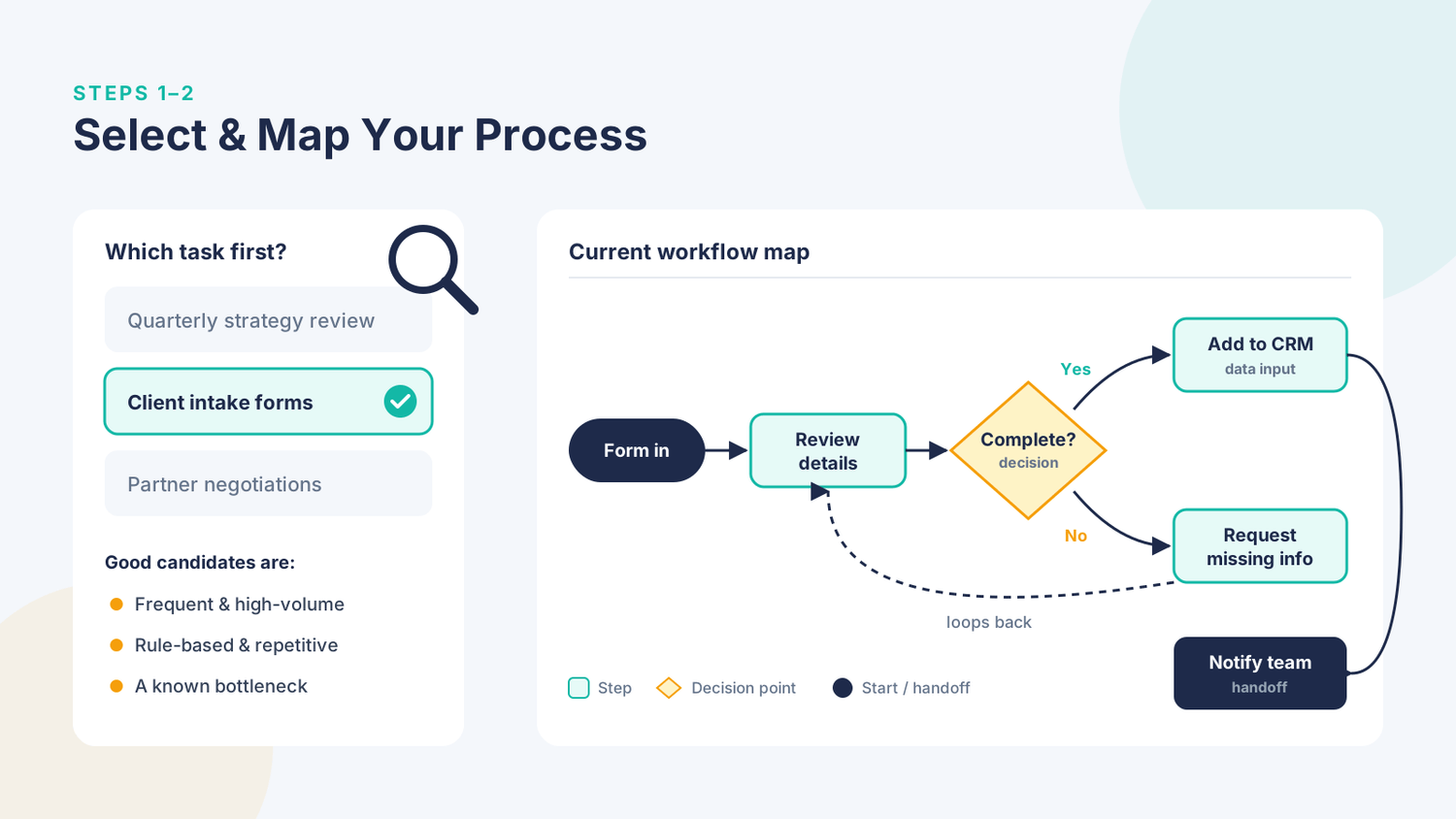
Map the current process before building an automation. Process mapping means writing down the steps, decisions, people, and applications involved in completing a task.
This helps you understand what actually happens rather than what you think should happen.
For the customer inquiry example, the current process might look like this:
A customer submits a website form.
An employee opens the form notification.
The employee copies the customer information into a spreadsheet.
The employee emails the salesperson.
The salesperson contacts the customer.
Next, identify delays, repeated work, and possible errors. Perhaps the employee forgets to notify the salesperson, or the customer details are entered incorrectly.
Then design the improved process:
A customer submits a form.
The system records the information automatically.
The system assigns the inquiry to the appropriate salesperson.
The salesperson receives a notification.
The system records the status for follow-up.
Also, identify situations that require human attention. For example, an incomplete form might need manual review instead of being sent directly to a salesperson.
Important: Automating an inefficient process can make the same problems happen faster. Simplify unnecessary steps before building the workflow.
Step 2 deliverable: A simple process map showing the starting point, each action, decision points, and the desired outcome.
Step 3: Which Business Process Automation Software Should You Use?
Choose software that supports your existing applications, fits your team's technical skills, and can handle the process you selected.
You do not always need a complex platform. For a small business, a straightforward integration between a form, a spreadsheet, and an email application may be enough.
Common options include:
Native app automations: Built-in features that connect actions within a particular application. These are useful when your workflow stays mostly inside one platform, but they may not support every integration you need.
Low-code automation platforms: Tools that let users build workflows through visual interfaces and connectors. They suit teams that want to connect several applications without developing everything from scratch.
Robotic process automation (RPA): Software that imitates human actions in a computer interface. It can help with repetitive tasks in older applications that lack suitable integrations, although changes to the interface may break the automation.
AI-enabled automation: Systems that use artificial intelligence to classify messages, extract information, summarize documents, or assist with decisions. Their outputs may require validation, especially when errors could affect customers or finances.
One example of a low-code platform is Microsoft Power Automate. Its official documentation explains how users can create automated workflows, connect applications, and use cloud or desktop flows.
When evaluating business process automation software, consider:
Compatibility with your current applications.
Setup and ongoing maintenance requirements.
Security, permissions, and data privacy.
Error notifications and activity logs.
Available support and documentation.
Subscription costs, usage limits, and additional licensing requirements.
Pricing varies by product, plan, region, and features. Check each vendor's official pricing page before choosing a tool; no specific software price is assumed in this guide.
Step 3 deliverable: A selected tool, a list of required integrations, and a clear understanding of the costs and limitations.
Step 4: How Do You Build Your First Automation Workflow?
Once you understand the process and select your software, build the workflow one action at a time.
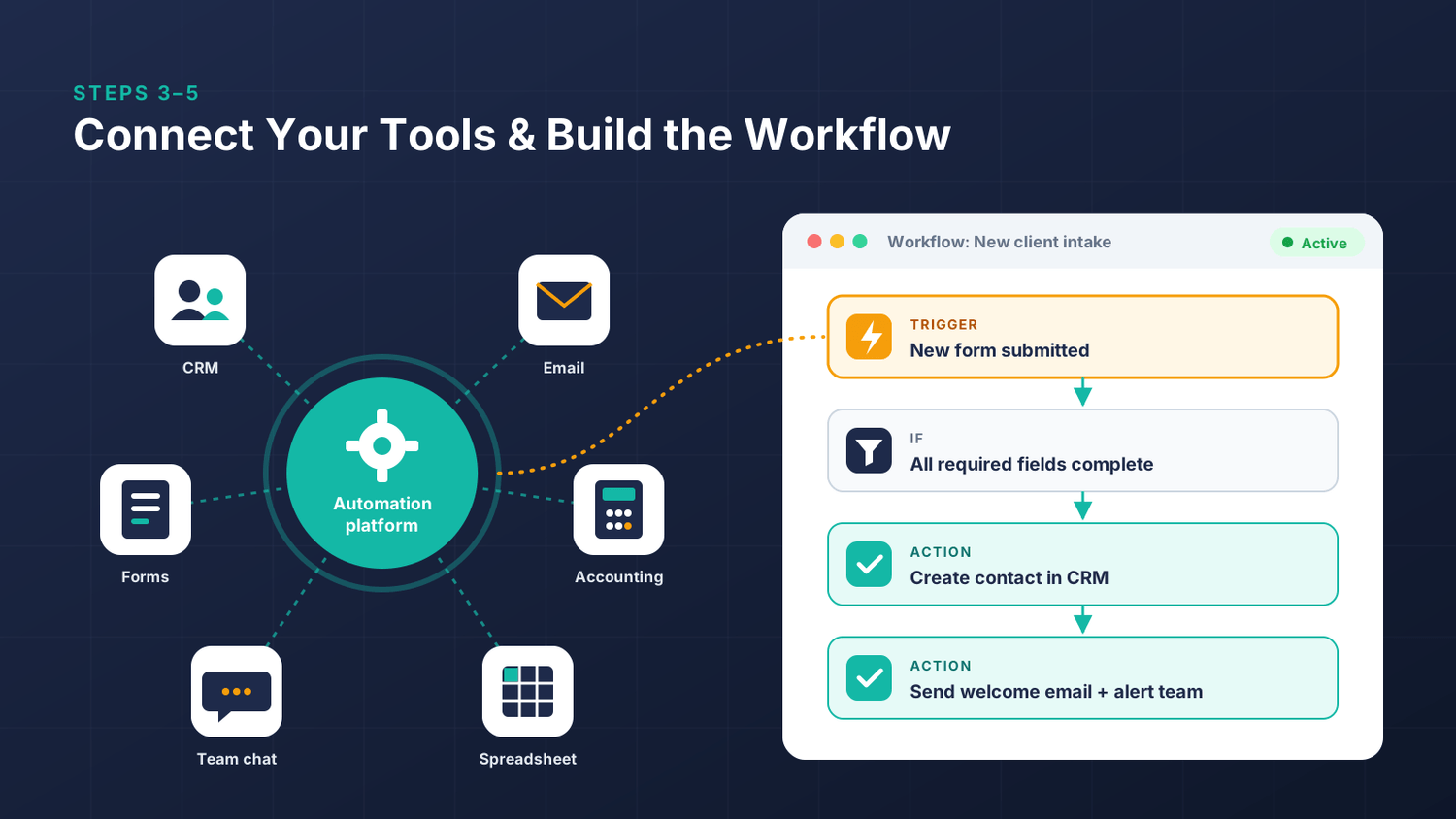
Most automations follow a basic structure:
Trigger → Action → Condition → Result
A trigger starts the workflow. An action performs a task. A condition checks whether something is true before continuing.
The result is the final outcome.
For the customer inquiry example:
Trigger: A customer submits a website form.
Action: The system captures the customer's name, email address, and inquiry.
Action: The system creates a new record in the designated spreadsheet or CRM.
Condition: The system checks whether the required contact details are present.
Action: If the information is complete, the system assigns the inquiry and sends a notification.
Alternative: If important information is missing, the system flags the inquiry for manual review.
Result: The team can see the inquiry and its follow-up status.
Build only the essential steps in your first version. Avoid adding unnecessary features before the basic workflow works reliably.
Use test records rather than real customer information when possible. Give the automation only the permissions it needs, and make sure sensitive information is not sent to unauthorized people.
If the process involves payments, confidential records, or important business decisions, include appropriate approval and security controls.
Step 4 deliverable: A working first version of the automation, ready for testing.
Step 5: How Do You Test an Automation Before Launching It?
Testing helps you find problems before the workflow becomes part of everyday operations.
Do not assume that an automation works simply because it runs successfully once. Test normal situations, unusual inputs, and possible failures.
For a customer inquiry workflow, test the following cases:
A complete form is submitted.
A required field is missing.
Two inquiries arrive close together.
The destination spreadsheet or CRM is temporarily unavailable.
An email notification fails.
The same inquiry is submitted twice.
Check whether the system creates accurate records, sends notifications to the correct person, and handles unexpected situations safely.
Also, test what happens when an action fails. Does the system notify someone? Can the team retry the action? Is there a record of what happened?
Run the automation alongside the existing manual process for a limited period if the business impact warrants it. Compare the results before relying on the automated version.
Document any issues you find, fix them, and repeat the tests. Keep a manual fallback available until the workflow is reliable enough for normal use.
Step 5 deliverable: A documented test checklist, resolved issues, and approval to launch.
Step 6: Who Should Own and Maintain the Automation?
Every business automation needs a clear owner. Automation does not eliminate responsibility; it changes how the work is performed.
The process owner understands the business requirements and confirms whether the workflow produces the right results. A technical owner may build the workflow, manage integrations, and troubleshoot errors. In a small business, one person may perform both roles.
Before launch, decide:
Who can edit or disable the automation?
Who receives failure notifications?
Who reviews unusual cases?
Who manages access permissions?
Who updates the workflow when business rules change?
Who is responsible for restoring the manual process if automation fails?
Keep a short document describing the workflow, its purpose, connected applications, important conditions, and recovery steps.
Review permissions regularly, especially when employees change roles or leave the business. Monitor failures and update the workflow when the applications it depends on change.
Step 6 deliverable: A named owner, documented responsibilities, and a maintenance plan.
Step 7: How Do You Measure the Benefits of Business Process Automation?
Measure the results to determine whether automation is actually improving the process.
Before launching the workflow, record how the current process performs. This gives you a baseline for comparison.
Useful metrics include:
Time per task: How long does each completed process take?
Manual effort: How many minutes of employee work are required?
Error rate: How often do incorrect records or missed steps occur?
Completion rate: What percentage of workflows finish successfully?
Response time: How quickly does the team act on a new inquiry?
Maintenance effort: How much time is spent fixing or monitoring the automation?
For example, suppose manually recording an inquiry takes three minutes and the business receives 20 inquiries per week.
The current workload is:
20 inquiries × 3 minutes = 60 minutes per week.
If automation reduces the manual work to 30 seconds per inquiry, the remaining manual workload is:
20 inquiries × 0.5 minutes = 10 minutes per week.
The estimated time saved is 50 minutes per week, assuming the volume remains constant and the workflow performs as expected.
This is an illustrative calculation, not a verified business result. It also excludes setup, maintenance, software costs, and time spent handling exceptions.
Review the results after launch and continue monitoring them. If the automation creates duplicate records or requires frequent manual corrections, improve the workflow before expanding it.
Step 7 deliverable: A baseline, a small set of performance metrics, and a regular review schedule.
What Are the Benefits of Business Process Automation?
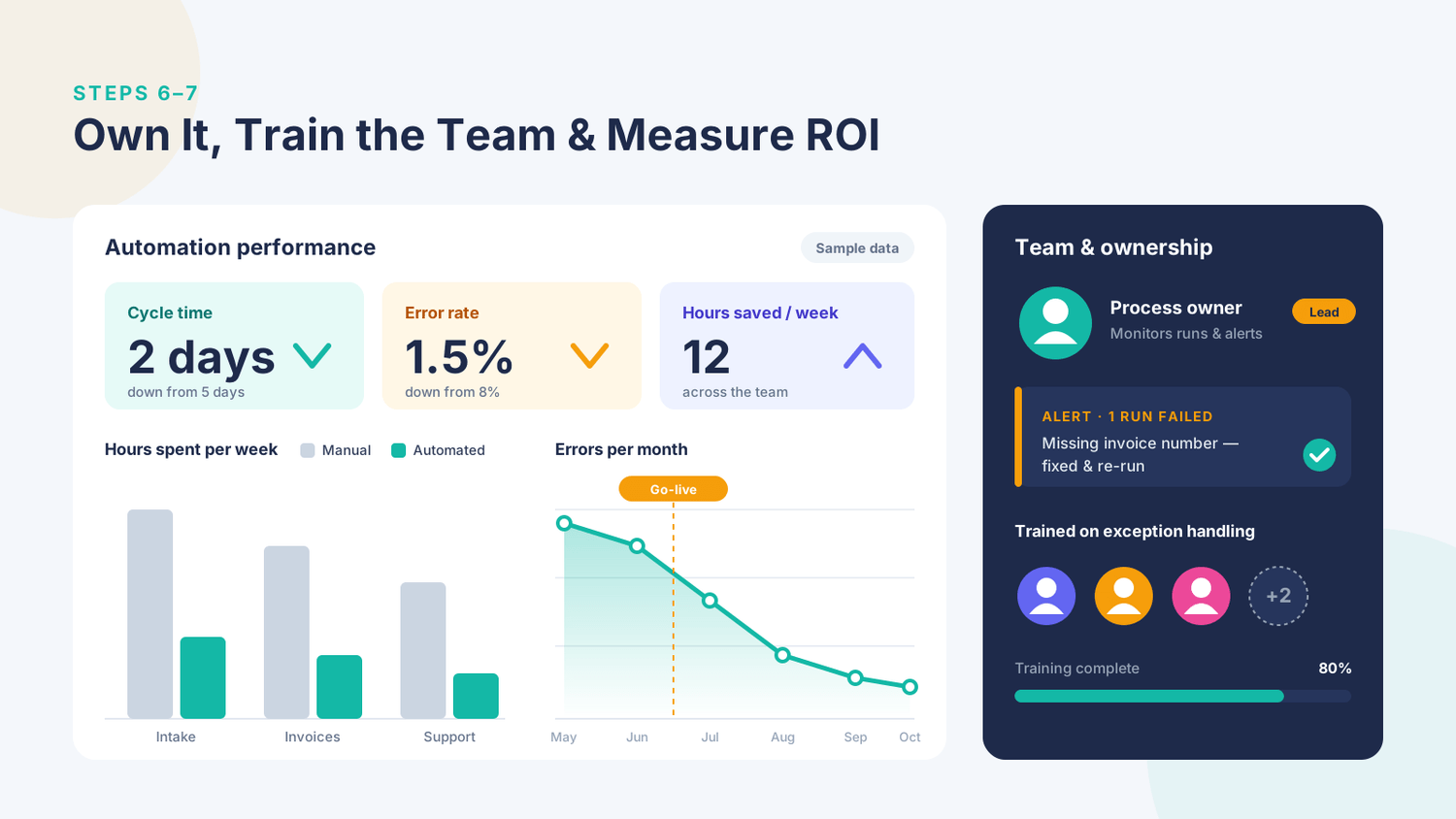
The benefits of business process automation depend on the process, the quality of the implementation, and how well the workflow is maintained.
Common potential benefits include:
Less repetitive work. Employees can spend less time copying information, sending routine notifications, and updating records manually.
More consistent processes. A properly configured workflow follows the same rules each time, reducing variation in routine tasks.
Fewer avoidable errors. Automated data transfers and validation checks can reduce mistakes associated with repeated manual entry. Incorrect inputs or faulty rules can still produce errors.
Better visibility. Workflow records and notifications can help teams understand what has been completed, what is waiting, and where a problem occurred.
More capacity for growth. A repeatable process may handle additional work without requiring the same increase in manual effort, provided the systems and processes can support the additional volume.
Improved customer experience. Faster acknowledgments and more reliable follow-ups can help customers receive timely responses.
These benefits are not automatic. Businesses should measure the actual results and account for implementation, maintenance, and oversight costs.
What Is the Difference Between BPA, RPA, and AI Agents?
BPA, RPA, and AI agents are related concepts, but they describe different aspects of automation.
Approach
Business process automation (BPA)
Robotic process automation (RPA)
AI agents
What it does
Coordinates a business process from start to finish.
Performs repetitive, rule-based actions in software.
Use AI to work through multi-step tasks and make context-dependent decisions within defined permissions.
Best suited for
Connecting workflows such as customer onboarding or invoice approval.
Repetitive tasks in applications without suitable integrations.
Tasks involving variable information or several possible next steps.
Main limitation
Complex processes need clear rules, integrations, and ownership.
Interface changes can disrupt workflows.
Outputs can be unpredictable and need appropriate safeguards and oversight.
These approaches can work together. For example, BPA can coordinate an invoice approval process, RPA can enter information into a legacy system, and an AI component can extract relevant details from an invoice.
The best choice depends on the task. Use simple rules for predictable activities, RPA when interface-based interaction is necessary, and AI when interpreting less structured information adds real value.
For a first automation, a straightforward workflow is often easier to test and maintain than an AI agent with broad permissions.
What Are Some Business Process Automation Examples?
Here are practical business process automation examples that small businesses can consider.
Lead management: Capture website inquiries, create CRM records, assign leads, and notify sales staff.
Invoice approvals: Route invoices to the appropriate approver, send reminders, and record approval decisions.
Employee onboarding: Create onboarding tasks, send instructions, and remind managers about outstanding steps.
Customer support: Categorize incoming requests, assign them to the correct team, and acknowledge receipt.
Reporting: Collect information from connected applications and prepare recurring reports for review.
Inventory monitoring: Check stock levels and notify the responsible employee when inventory reaches a defined threshold.
Each example should begin with a clearly defined process, appropriate permissions, and a way to measure success. Start with one workflow and expand only when the initial automation is reliable.
How Can Unboxed Automation Help Businesses Automate Their Processes?
Business process automation can help businesses connect routine activities, reduce manual work, and improve visibility into everyday operations. The right starting point is a clearly defined problem, a manageable workflow, and measurable results.
[EDITORIAL REVIEW REQUIRED — CLIENT EXAMPLE]
Before publishing, ask Rob Robertson to provide an approved Unboxed Automation client example. Include:
The problem: What repetitive or inefficient process did the client face?
The solution: What was automated, and which systems or tools were involved?
The verified outcome: What changed after implementation, and how was the result measured?
Permission: Has the client approved publication of the example and any identifying details?
Do not publish an invented case study or an unverified performance claim. If no approved example is available, replace this section with a verified description of Unboxed Automation's services, or hold it for review.
Frequently Asked Questions
1. What is business process automation in simple terms?
Business process automation uses technology to complete repetitive business tasks automatically. Examples include transferring information between applications, sending reminders, routing approvals, and updating records.
2. How do I automate my first business process?
Choose a repetitive task, map the existing steps, select suitable software, build a simple workflow, test different situations, assign an owner, and measure the results. Start with one process before automating more complex operations.
3. Which business process automation software is best for small businesses?
The best software depends on your existing applications, budget, technical skills, security requirements, and workflow complexity.
Begin by checking built-in automation features before considering a separate platform. Compare current vendor pricing and licensing requirements before making a decision.
4. Is business process automation the same as robotic process automation?
No. BPA focuses on improving or coordinating an overall business process, while RPA uses software to imitate actions a person performs through a computer interface. RPA can be one component of a broader BPA solution.
5. How do I know whether my automation is successful?
Compare performance before and after implementation. Measure factors such as time per task, manual effort, error rate, successful completion rate, and maintenance requirements.
Include software and implementation costs when evaluating the overall business value.
Sources and Further Reading
Microsoft Power Automate documentation — Official guidance on building, managing, and troubleshooting automated workflows.
Microsoft Learn: Automate a business process using Power Automate — Training on creating workflows, approvals, and other business process automations.
Microsoft Power Automate process maps — Documentation on monitoring workflows, examining run history, and troubleshooting automation failures.
Editorial note: Verify all links and relevant product details before publication. No client results, company credentials, or financial performance claims have been assumed.


© 2026 - Unboxed Automation. All rights reserved